PDFs
Avoid PDFs
PDFs are challenging to make accessible. When possible, avoid PDFs unless they are needed for printing. If you need to make existing PDFs accessible, here are the best options.
- Recreate in Another Format: Because remediating an existing PDF can be time consuming and inaccurate, it’s often better to recreate the content in a different format. Consider opting for a webpage, Google Doc or Google Form.
- Go Back to Source File: If a PDF is necessary, ensure your source file — or the file you originally created — is accessible before exporting it to PDF.
Google How-To
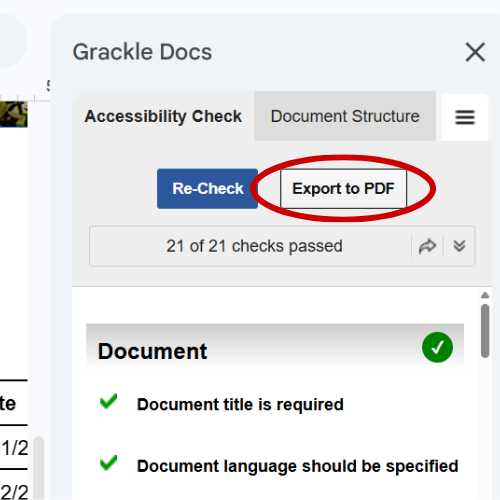
- Use the Grackle Google Workspace add-on to check your Docs, Sheets and Slides for accessibility.
- Once you address all errors, use Grackle’s Export to PDF button to preserve the accessibility features.
- Remediate PDF: This should be a last resort if you can’t recreate the content in another format or you don’t have the source file.
- Use the built-in testing and remediation tools in Adobe Acrobat.
- Start by going to All tools>Prepare for accessibility>Check for accessibility.
Structure
While you should follow all digital accessibility best practices, it’s helpful to understand structure. Tags give your PDFs structure by identifying elements on the page and creating a logical hierarchy. This makes your content easier to navigate and be read by screen readers.
Acrobat Note
Although Acrobat can automatically tag your PDF, it isn’t always accurate. It’s important to review the tags and manually re-tag elements to correct errors.
Ensure the following are tagged properly:
- Headings: In your source document, use built-in heading styles, such as Heading 1 and Heading 2.
- Lists: In your source document, format lists using the bulleted or numbered list tools.
- Tables: Set header cells as table headers.
- Images: Images should be tagged in a PDF as Figures and, if meaningful, include alternative text.
veraPDF
veraPDF is the recommended accessibility checker for LaTeX-generated PDFs. The open-source tool is available through PDFix Desktop Lite.