Spreadsheets
Alternative Text
For images, charts and graphs, add alt text that describes both content and function.
Google Sheets How-To
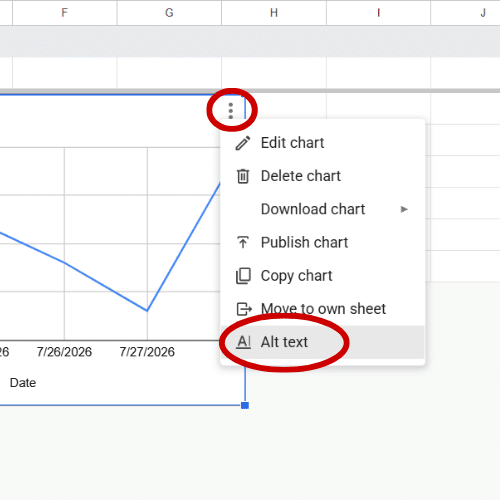
- Click the image, chart or graph.
- Click the three vertical dots in the top-right corner.
- Select Alt text.
- Add alt text in the Description box.
Color and Contrast
- Do not use only color to convey information, indicate an action or distinguish a visual element. Use a second visual cue.
- Some software has built-in contrast checkers. For those that do not, consult the WebAIM Contrast Checker.
- Edit the spreadsheet theme to select font, hyperlink, chart and accent colors.
- Be sure to select font and background colors that meet the minimum contrast ratio when using conditional formatting, alternating colors or in-cell dropdown lists.
Google Sheets How-To
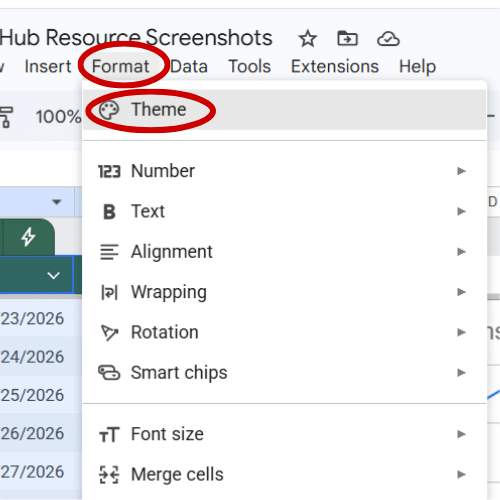
- Click Format.
- Select Theme.
- In the right-side panel, select any of the provided themes.
- Click Customize.
- Click each theme color in the menu to adjust them.
- Click Done.
Links
- Always link meaningful text instead of including the full URL, which is difficult for screen readers.
- Meaningful text means clearly describing where the link points. For example, see how the “Color and Contrast” section above links “WebAIM Contrast Checker” to let you know the link points to that tool.
Google Sheets How-To
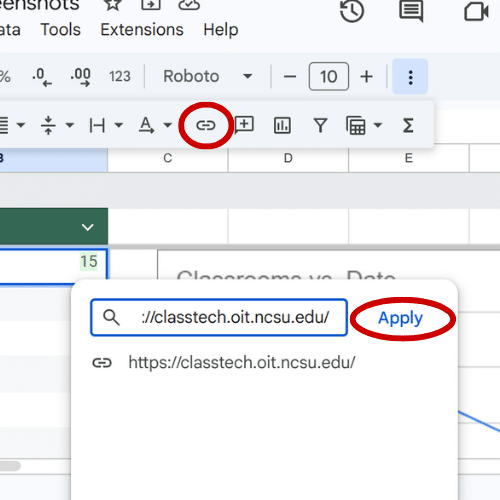
- Highlight text or click the individual cell.
- Click the Link icon.
- Paste the URL into the link field.
- Click Apply.
Structure
- If your spreadsheet file includes multiple sheets, give each sheet a unique, descriptive name.
- Spreadsheets should follow a logical reading order — left to right, then top to bottom. Start all worksheets in cell A1 and avoid spanning content over multiple rows or columns.
Google Sheets How-To
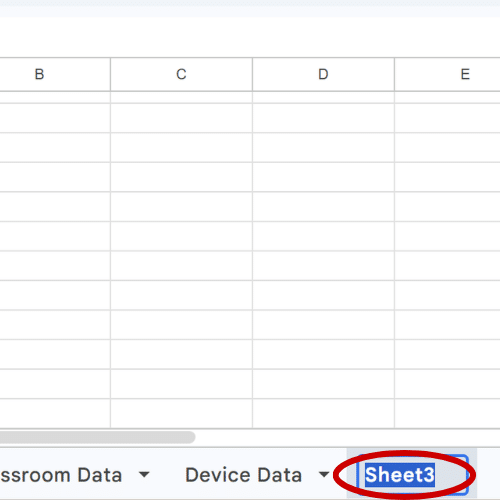
- Double click each sheet tab.
- Type a descriptive name.
- Hit Enter.
Tables
Only use tables to display data, not to format content. When tables are used properly, assistive technology can interpret header rows and the relationship between data cells.
Google Sheets How-To
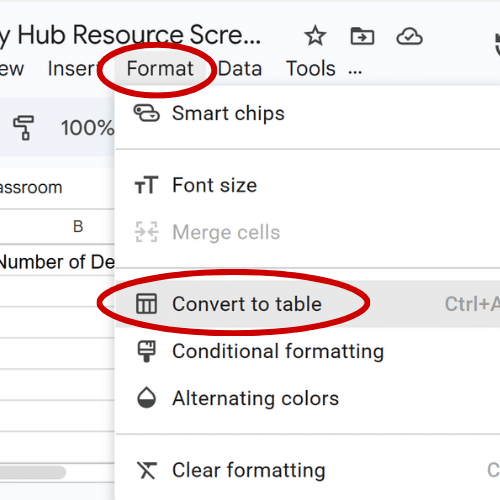
- Click Format.
- Select Convert to table.
- Click the down arrow in the upper-left corner of the table next to “Table1.”
- Click Rename table to give your table a descriptive name.
- Click Table header color to adjust colors to meet accessibility standards.
Sharing Spreadsheets
Avoid exporting your spreadsheet as a PDF, if possible, as PDFs come with many accessibility challenges. Alternative ways to share include simply sharing the spreadsheet file or publishing the spreadsheet to the web. When a spreadsheet is published to the web, the published content is viewable as a single, scrollable HTML page. Screen reader users often find the HTML version easier to read.
Google Sheets How-To

- Click File.
- Hover over Share.
- Select Publish to web.
- In the pop-up window, choose to publish either the entire spreadsheet or individual sheets and select the publishing format.
- Click Publish.
Grackle Accessibility Checker
Grackle is a Google Workspace add-on that provides an automated accessibility report with information about how to improve the accessibility of your Google Docs, Sheets and Slides.
Once installed and launched, the Grackle panel will open on the right side of your screen. The Accessibility Check will flag errors for you to fix in your spreadsheet. Click an item in the Grackle panel to navigate to that item in your spreadsheet. Once you fix your errors, click Re-Check to scan again.